QuickLogs × LogTen Pro
Your paper logbook is holding back the LogTen report you need next.
LogTen is built to turn flight history into useful totals, reports, and career-ready printouts. QuickLogs gets the history out of paper first, flight by flight, with FAR 61.51 checks and your review before anything reaches LogTen.
By Dylan, Founder of QuickLogs · Updated September 17, 2026
Why LogTen
LogTen is where a career logbook starts doing real work.
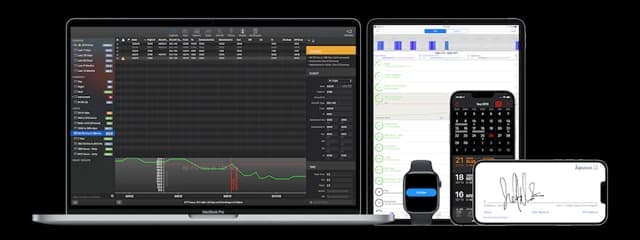
A paper book can prove your time. A professional digital logbook can help you use it. LogTen offers more than 100 report formats, including checkride, flight-experience, and Jeppesen-style reports. Its Jeppesen Pro 27 logbook is a familiar printout for airline interview preparation.
That is why many pilots choose LogTen as the working view of their flying career: it can total, filter, analyze, and report on every individual entry. But those reports are only as useful as the data behind them. A photo of a paper page is not a structured flight record, and a balance-forward total cannot recreate the detail you may need later.
The missing step
Before you import old flights, make sure the record holds up.
Digital logbooks are excellent places to manage clean flight data. Turning old paper pages into that data is a different job.
QuickLogs checks extracted flights against FAR 61.51 before export: required fields, time math, aircraft identifiers, and instrument details are flagged for review. A flight with a blocking issue cannot be verified or sent to LogTen.
This is not a legal opinion, and no software replaces the pilot's responsibility for the record. It is a practical guardrail: catch a bad transcription while the paper source is beside you, not after it has already shaped a total or report.
Choose a method
You have three ways to get a paper logbook into LogTen.
The question is not whether you can go digital. It is how much time, money, and verification work you want to take on.
| Method | Pilot effort | Keeps each flight | Main tradeoff |
|---|---|---|---|
| Type it yourself | Highest | Yes | Maximum control, but you retype every flight and do every quality check yourself. |
| Hire a transcription service | Low to medium | Usually | Someone else types the book, but you still need to audit the result and compare cost, turnaround, and privacy. |
| QuickLogs | Review-focused | Yes | QuickLogs extracts the rows and flags issues; you review the original page and approve the record before export. |
QuickLogs is designed for the middle ground: less expensive and faster than handing off the whole book, without making you trust a black-box conversion. You retain the paper source, inspect every extracted flight, and decide what becomes part of your LogTen history.
Preserve the source
Keep the signed paper books after the conversion.
A searchable copy of an endorsement is useful, but it does not replace the entry your instructor signed. Keep the original pages, store them securely, and bring them when an examiner, employer, or other reviewer asks for the source record.
For U.S. pilots, FAR 61.51 describes the aeronautical experience and training records a pilot must document. QuickLogs can help identify incomplete fields during conversion, but the pilot remains responsible for the record and for deciding whether the digital result matches the paper source.
The QuickLogs path
From photographed page to confirmed LogTen records
The work shifts from typing the book to reviewing the conversion.
Official partnership




- Capture the paper pages. Use your phone or upload scans you already have. Keep pages in order and retain every original book.
- Review the extracted flights. Compare each row with the page image and resolve uncertain handwriting, aircraft, times, landings, approaches, remarks, and validation flags.
- Send aircraft first. Open the direct LogTen handoff and confirm the aircraft, so the records referenced by your flights exist before those flights arrive.
- Send and confirm flights. Inspect the approved flights in LogTen and accept the import there. The final decision stays with you.
What moves
Preserve the details that make the digital logbook useful.
A line-by-line conversion supports much more than a single total-time number.
- Flight dates and aircraft identification
- Departure, destination, and route
- Total, PIC, SIC, solo, and dual time
- Day, night, cross-country, and instrument time
- Day and night takeoffs and landings
- Approaches, holds, remarks, and instructor details
- Aircraft make, model, category, class, and equipment information
- Custom fields that matter to your reports and career records
Verify before scaling
Test a few known pages before moving the entire history.
A small test makes field-mapping or total differences easier to find before they affect years of entries.
- Back up any flights already stored in LogTen.
- Choose three representative paper pages, including a page with handwriting or fields you consider difficult.
- Review every extracted row against the page image and resolve active flags.
- Send the aircraft and flights to LogTen, then inspect the result inside LogTen, not only in the handoff preview.
- Compare dates, aircraft, time categories, landings, approaches, remarks, and page totals with the paper source.
- Continue in bounded batches only after the test agrees with the original record.
Keep it current
Move the backlog once, then send only what is new or changed.
QuickLogs tracks verified flights it has handed off so later transfers can focus on the records that need attention.
The preview separates records that need to be created, updated, removed, or left unchanged. QuickLogs does not read your LogTen database, so it cannot detect a flight deleted inside LogTen. A deliberate resend control covers that recovery case.
Complete the handoff on the device where you use LogTen. On an iPhone or iPad, sign in to QuickLogs in the browser, send the aircraft, return for the flights, and confirm the import in LogTen. No spreadsheet formatting or separate file transfer is required.
Partner benefits
QuickLogs pilots new to LogTen receive the current partner offer.
- 3 months free LogTen Pro for QuickLogs pilots
- 23% off LogTen Pro after the trial, or 12% off Basic
- 120+ built-in reports including IACRA 8710 and currency
- Syncs across iPhone, iPad, Apple Watch, and Mac
The extended trial and discount are for eligible pilots who are new to LogTen and purchase a QuickLogs page package. Existing LogTen subscribers can still use the conversion and handoff workflow, but they are not eligible for the new-user offer.
Review the official QuickLogs partner page on LogTen for the current offer, then find the redemption steps in QuickLogs Settings after purchase.
Still comparing destinations? Review the paper-to-ForeFlight workflow or start with the broader guide to digitizing a pilot logbook.
Questions
Paper logbook to LogTen Pro FAQ
- Do I need to keep my paper logbook after moving to LogTen?
- Yes. Keep every original paper logbook, especially pages containing instructor signatures and endorsements. The digital record improves search, totals, backups, and reporting; it does not make the signed source record disposable.
- Do I need a Mac to send QuickLogs records to LogTen?
- No. The direct handoff can be completed from an iPhone or iPad when QuickLogs and LogTen are available on that same device. Sign in to QuickLogs on the device where you use LogTen, then review and confirm the import inside LogTen.
- Is QuickLogs an official LogTen partner?
- Yes. QuickLogs is an official LogTen partner. Pilots new to LogTen can receive the currently advertised extended trial and subscription discount after purchasing a QuickLogs page package.
- Does QuickLogs have access to my LogTen account?
- No. QuickLogs prepares aircraft and flight records and opens LogTen's import handoff. You inspect and confirm the import in LogTen; QuickLogs cannot read or modify data already stored in your LogTen account.
Test the paper-to-LogTen workflow on three real pages.
Review your own handwriting and flight records before deciding how much of the backlog to convert.
Try your first 3 pages free